Manual · Chapter 5 · Part B Knowledge
Data sources
Purpose
Data sources bring the knowledge into the collection. A collection can have any number of them, including several of the same type: the website, a folder of data sheets, the knowledge portal, the ticket system. Each data source appears as its own tab in the collection view and manages its own documents.
Where
In the collection rail, open Data sources.
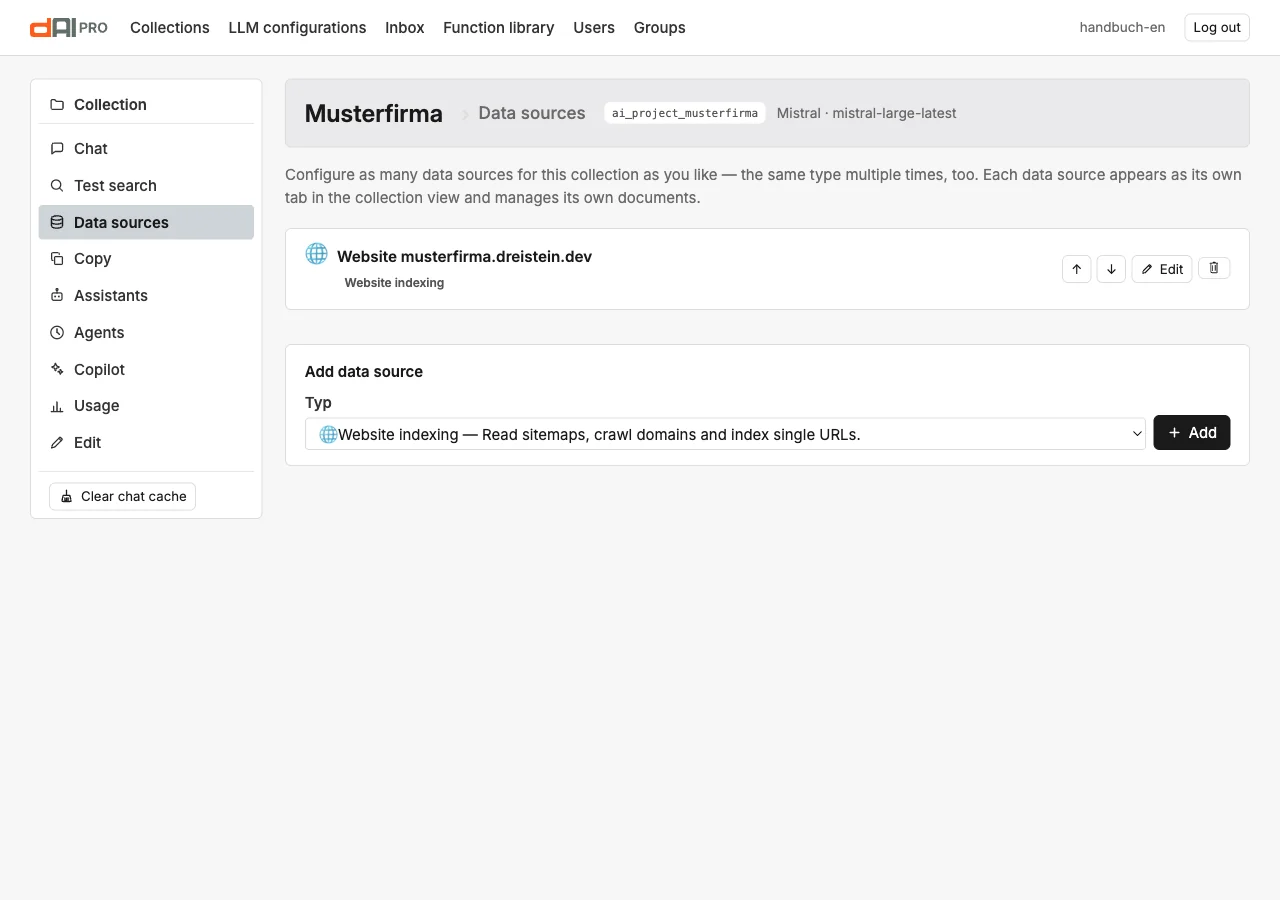
The order of the data sources is the order of indexing: pages that an earlier data source has already captured are not indexed again. Use the arrows to change the order.
The types

| Type | What for |
|---|---|
| Website indexing | Read sitemaps, crawl domains, index individual addresses. The normal case for a website. |
| Files | Upload files: PDF, text, Office, HTML. For data sheets, price lists, brochures. |
| Internet links | A list of individual addresses, including other websites, such as manufacturer pages. |
| Input | Enter knowledge directly as title and text: opening hours, rules, answers that are written down nowhere else. |
| Support database | Verified answers from the support inbox. They have no public page; the chat cites them as “our support database” without a link (Chapter 17). |
| CSV file, Excel file | Tables row by row as documents: product lists, spare parts, locations. |
| Read folder | A folder on the server, recursively; each file a document. |
| Database query | An SQL query against an external database; each row a document. |
| Confluence, Notion | Pages from the knowledge portal via API. |
| Zendesk, Freshdesk | Articles from the help centre or the knowledge base. |
| Nextcloud, SharePoint, Google Drive | Files from a file store, via WebDAV, Microsoft Graph or OAuth. |
| E-mail mailbox | Messages from an IMAP mailbox as documents. |
The access credentials for the connected services (tokens, passwords) are usually entered by the administrator (Chapter 27). This chapter describes the most common type in detail; the others follow the same form with their own fields.
What happens after saving
Saving only creates the data source. The content arrives with Start indexing in the collection view, and it gets into the index with Process (Chapter 6). For data sources that fetch files (Nextcloud, SharePoint, Google Drive, folder), the first step is called “Synchronise” and likewise runs through the background worker.
Frequently asked questions
The crawl only finds the start page. The website builds its navigation with JavaScript. Set the renderer to Playwright, or enter the sitemap. If the option is marked “not set up”, the render service is missing — until your administrator sets it up, only the sitemap helps.
Some pages should not go into the chat. Deactivate the documents after the crawl (Chapter 6), or index only the addresses you want using “Page list”.
The website can only be reached with a login. Use the type “Files” or “Read folder”, or have the administrator set up access for the crawler.
I deleted the data source, but the documents are still there. Documents belong to the data source and disappear with it. Check the correct tab in the collection view; “Clean up” removes leftovers.
See also
- Chapter 6 · Documents
- Chapter 17 · Support inbox (support database)
- Chapter 27 · Hardening (access credentials)