Manual · Chapter 6 · Part B Knowledge
Documents
Purpose
The collection view is the workbench for your content: here you see what is indexed, start runs, process, deactivate and clean up. Anyone who knows what is listed here can trace every answer of the chat back to its source.
Where
In the collection rail, open Collection. At the top are the data sources as tabs, with the key figures per tab: documents of the source, chunks of the collection, crawl depth, max. pages.
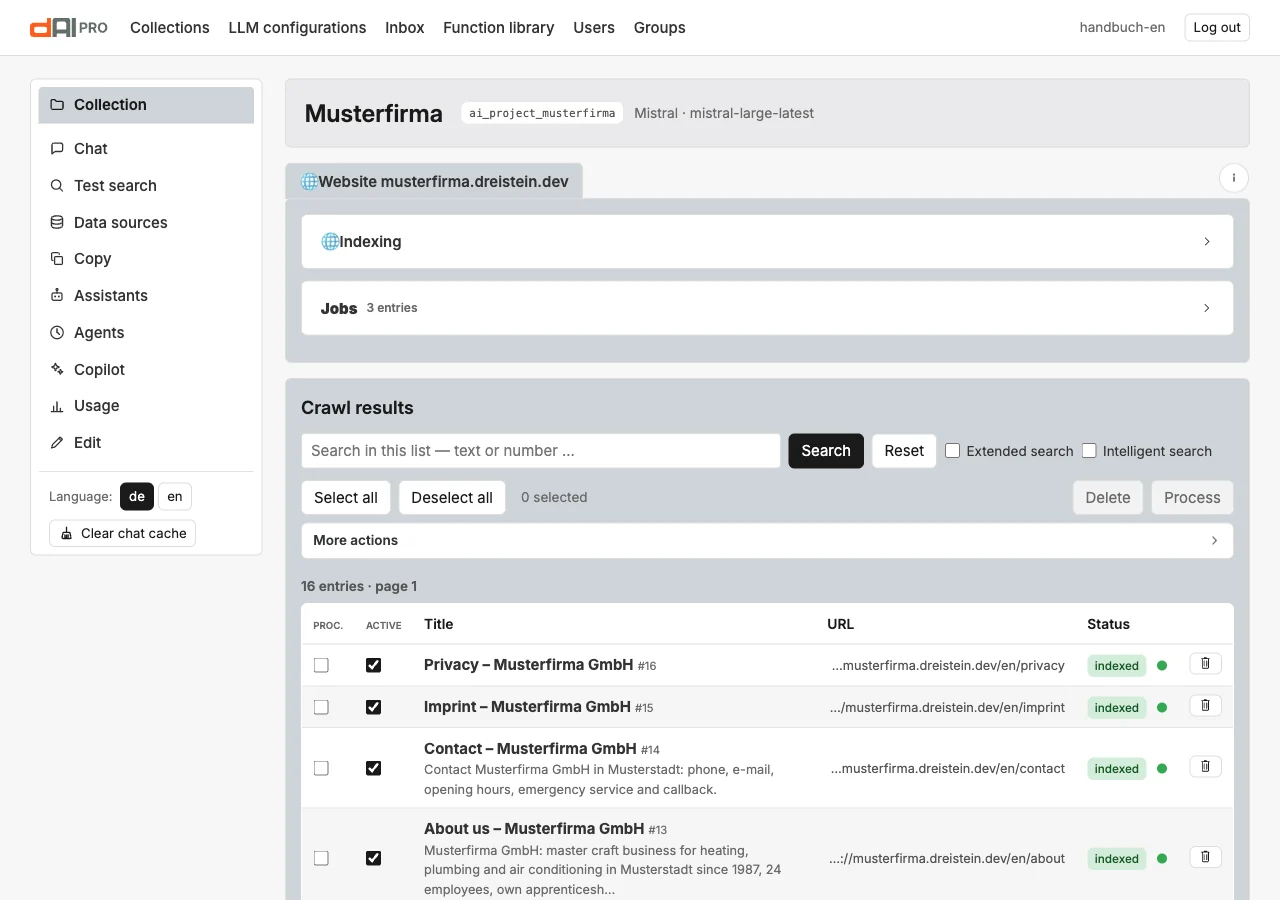
Indexing and jobs
The Indexing box starts the run according to the configuration of the data source. Below it, a single URL can be indexed, for a quick test or a straggler. The options in the box apply to this one run only and do not overwrite the data source:
| Option | Meaning |
|---|---|
| Automatic language detection | Detects the language of each page while crawling. |
| Overwrite data | Also re-fetches pages that appear unchanged. |
| Which content to index | As in the data source, but for this run only. |
Every run appears in the Jobs list with type, status, progress and last message. A failed job shows the errors per address, for instance a page that could not be reached. Completed jobs can be removed from the list.
The document list
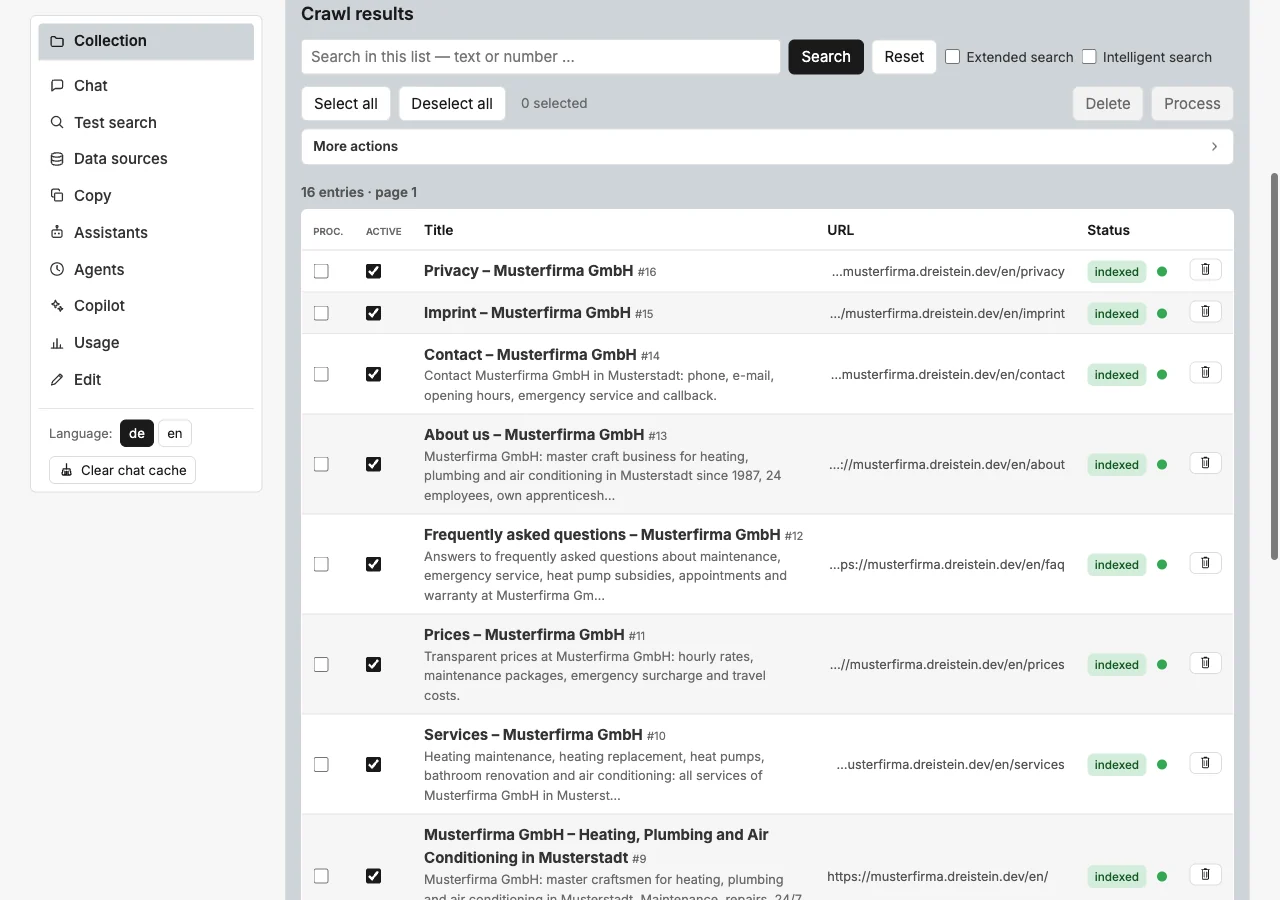
| Column | Meaning |
|---|---|
| Proc. | Selection for “Process” and “Delete”. |
| Active | Toggle: a deactivated document is kept, but is used neither in the chat nor in the search. |
| Title, URL | The title from the page, below it description and address. |
| Status | crawled: fetched, not yet in the index. indexed: in the index. failed: error, reason in the column next to it. |
Above the list: Search by title or address, Extended search with filters by status and language, Intelligent search by meaning across the content. Select all selects across all pages of the list.
Process
Process extracts the selected documents, splits them into chunks and computes the index. Necessary after every crawl and after every change to the indexing prompt. While a run is in progress, the list shows the progress per document without reloading.
More actions

| Action | Meaning |
|---|---|
| Clean up | Removes documents that no longer exist in the source, and orphaned leftovers. |
| Check for changes | Re-fetches the pages and indexes only those that have changed. The freshness guard does this regularly by itself (Chapter 15). |
| Translate | Creates missing language versions and translates them, for files that are linked from several languages. |
| Run OCR | Re-reads documents with text recognition that were processed without OCR in the first run. |
Deactivate instead of delete
A deleted document comes back with the next crawl. A deactivated one stays in the list but is invisible to chat and search, and the next crawl respects that. Deactivating is therefore the right way for pages that do exist but should not appear in the answers.
Copy
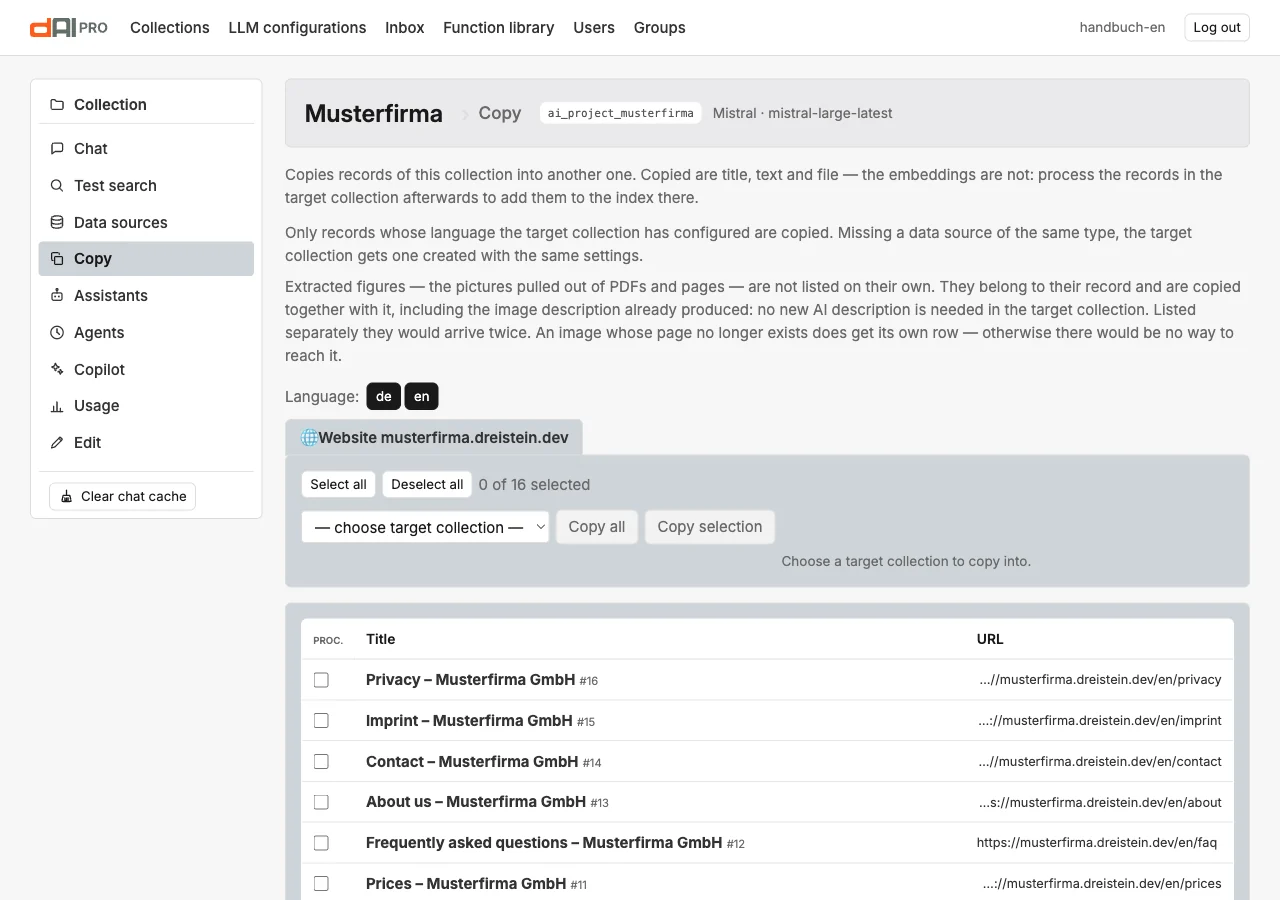
Copy in the rail transfers documents to another collection: title, text and file, not the index. In the target collection the documents then have to be processed. Only documents in languages that the target collection carries are copied; if a data source of the same type is missing there, it is created with the same settings. Figures travel along with their document, including the description already generated.
Frequently asked questions
A document shows “failed”. The “Reason” column names the cause, usually an address that cannot be reached or a file without readable text. Fix it, then select the document and process it.
The number of chunks is much higher than the number of documents. That is normal: long pages and PDFs produce many chunks. Each one is found individually.
The chat doesn’t know about a change although the document has been re-indexed. Clear the chat cache in the rail. dAI Pro remembers answers to identical questions.
See also
- Chapter 5 · Data sources
- Chapter 7 · Good answers
- Chapter 15 · Agents (freshness guard)