Manual · Chapter 9 · Part C Channels
Embedding the search
Purpose
The chat answers questions. The search shows where the answers are: a result list across the entire indexed content of the collection, with title, address and a short description per result. Above it, dAI Pro summarises the results in two or three sentences and suggests related searches. Results are found by meaning and by keywords at the same time, which is why “heating dripping” finds the page about the emergency service even though it says “burst pipe” there.
As with the chat, you need one line of code. You set everything else in the search configurator; the test search next to it shows every change immediately and saves automatically.
Where
In the collection, open the item Test search. At the top is the test search across the indexed content, below it the section Embed code for external pages with the configurator.
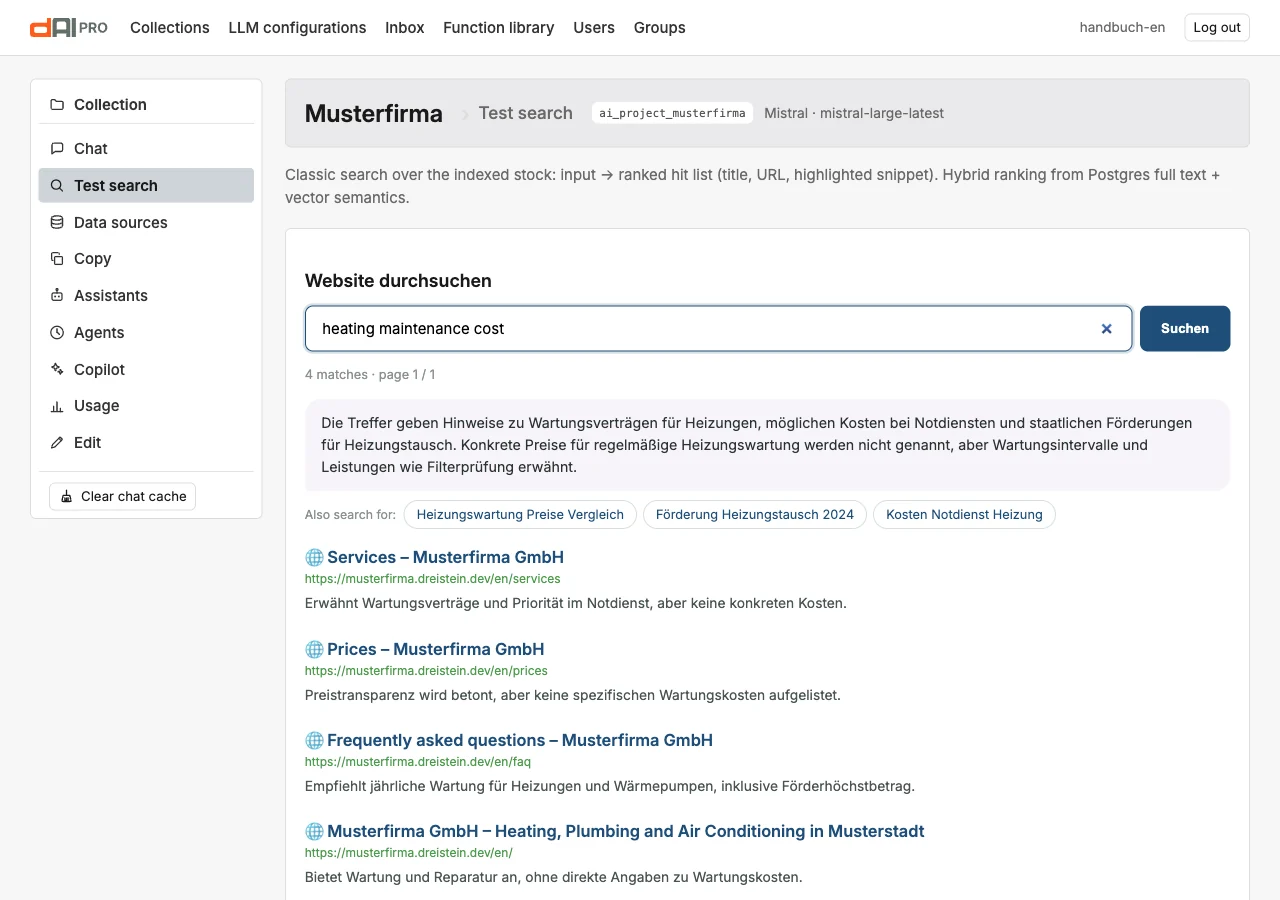
What visitors see
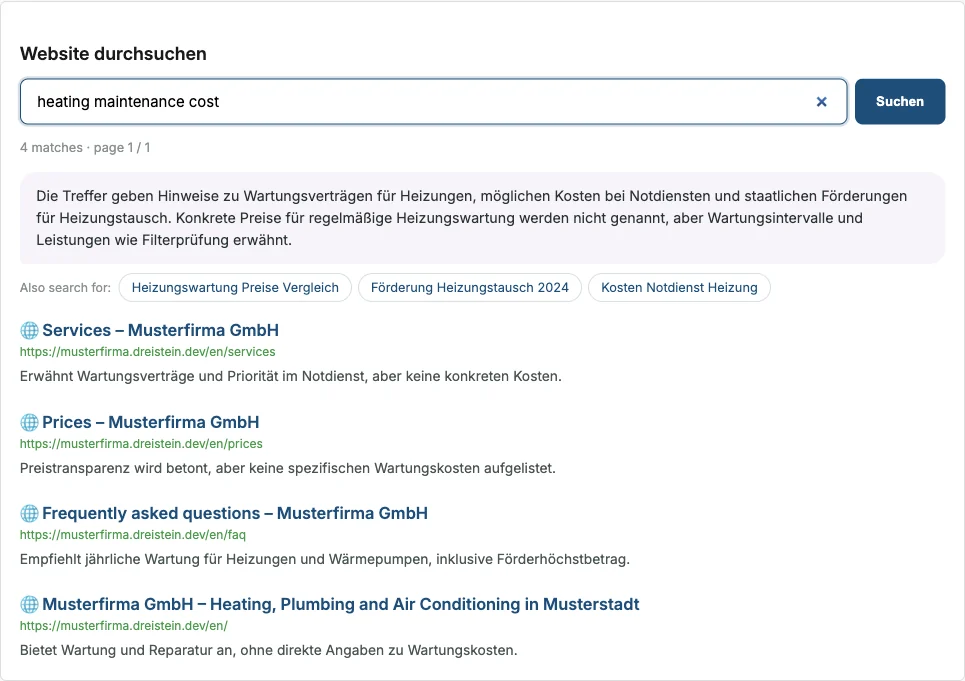
- Number of results and page, for example “4 results · page 1 / 1”.
- Summary: dAI Pro summarises the results in two or three sentences, with the specific details from the pages.
- Also search for: three related searches as chips; a click starts them.
- Result list with an icon for the type of document (web page, PDF, text, Office), title, address and a short description that dAI Pro generates per result. The title leads to the page.
- Paging, if there are more results than set per page.
Summary and short descriptions cost one call of the language model per search. That is uncritical for a website search, but plays a role with “search while typing” (see below).
Step by step
- Design. Go through the four sections of the configurator. The test search shows every change immediately.
- Copy. At the end of the page is the finished embed code; the “Copy” button puts it on the clipboard.
- Paste. Insert the line into your website where the search should appear, or enter a target element (section “Integration”).
- Allow. The allowed websites apply to chat and search together: Edit → Access and visitor features → Allowed websites. If the website is already entered for the chat, there is nothing to do.
The sections in detail
Search & language

| Field | Meaning |
|---|---|
| Search language | Restricts the results to one language of the collection. “automatic” takes the language of the page in which the search is embedded. |
| Search mode | Hybrid combines similarity of meaning with exact keyword matches and is the best default. Keywords only finds exact terms such as article numbers and names. Meaning only finds paraphrases even without shared words. |
| Results per page | 5 to 50; further results are paged. |
| Search while typing | Searches after every keystroke with a short pause instead of only on Enter. Every search costs one call of the language model for the summary; better off on heavily visited pages. |
Appearance
| Field | Meaning |
|---|---|
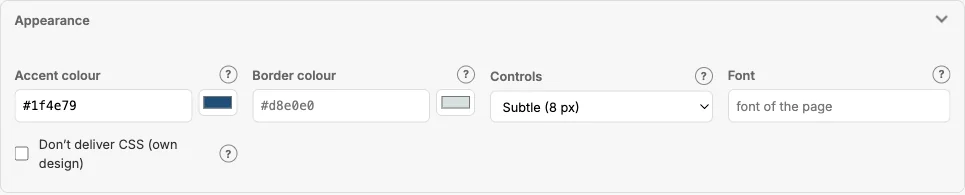
| Accent colour | Colour of the search button, links in the result list and the focus ring of the search field. Empty = collection default. |
| Border colour | Colour of the lines of the search field and result cards. Empty = light grey. |
| Controls | Search field and button round, slightly rounded or square. |
| Font | Empty adopts the font of the page. |
| Don’t deliver CSS | For your own design: the loader delivers no stylesheet; you style the search yourself using the search’s classes. |
Texts
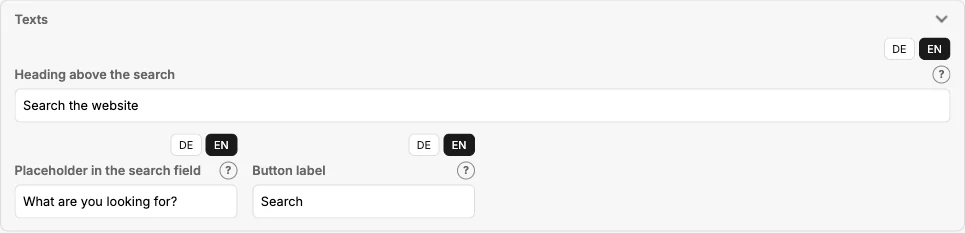
| Field | Meaning |
|---|---|
| Heading above the search | Optional, per language. Empty = no heading. |
| Placeholder in the search field | Grey hint text in the empty search field, per language. |
| Button label | Text on the search button, per language. |
The tabs DE and EN appear as soon as the collection has indexed content in several languages. The tab you are currently looking at is the one you are editing.
Integration

| Field | Meaning |
|---|---|
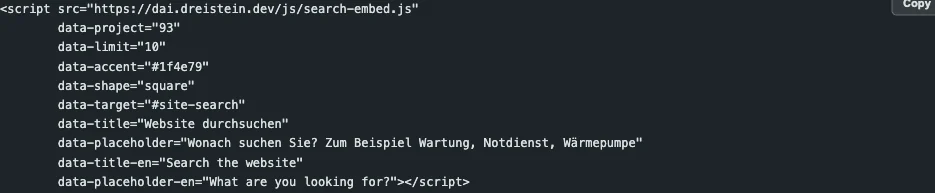
| Target element (CSS selector) | The element into which the search is placed, for example #site-search. Empty = directly after the script tag. |
The embed code
A single script tag with data- attributes, only with the deviations from the defaults. The search talks to the /api/search endpoint of your dAI Pro instance; further attributes such as mode, language, border colour or button label are in Chapter 28.
If your website uses a Content Security Policy, the address of your dAI Pro instance must be allowed in script-src, style-src and connect-src.
Frequently asked questions
The search doesn’t find a page that exists. Check in the collection’s documents whether the page is indexed and active (Chapter 6). If the page is in a different language from the page with the search, the search language hides it.
Chat and search on the same website? Yes, and that is the normal case. Both use the same collection, the same allowed websites and the same knowledge. The search leads to pages; the chat answers directly.
Can I switch off the summary? No, it is part of the search. If you want just a result list without a language model, use the mode “Keywords only” and leave “search while typing” off; then the effort stays minimal.
Can I design the search entirely myself? Yes. Tick “Don’t deliver CSS” and style the search’s classes with your own stylesheet.
The search doesn’t appear on another website. Check the allowed websites in the collection’s settings. They apply to chat and search together.
See also
- Chapter 4 · Setting up collections (allowed websites)
- Chapter 6 · Documents
- Chapter 8 · Embedding the chat
- Chapter 28 · Embed reference