Manual · Chapter 8 · Part C Channels
Embedding the chat
Purpose
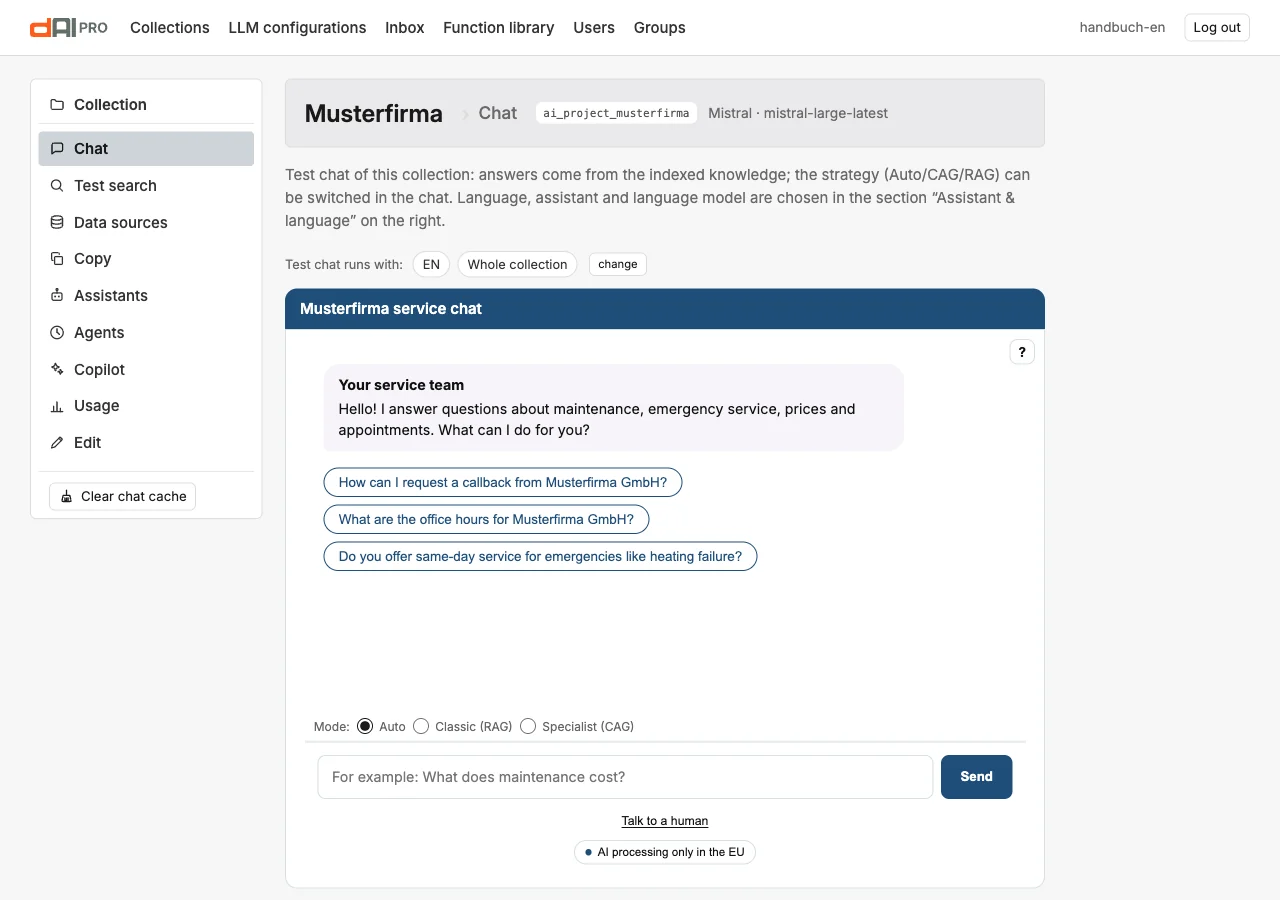
The chat of your collection should go on your website. For that you need exactly one line of code, and everything the chat can do, how it looks and what it says, you set in the embed configurator. Every change appears immediately in the test chat next to it and is saved automatically. A “Save” button is deliberately absent here.
Where
In the collection, open the item Chat. At the top runs the test chat with the indexed knowledge of the collection. Below it begins the section Embed code for external pages with the configurator.
Step by step
- Design. Go through the sections of the configurator from top to bottom. The test chat shows every change immediately.
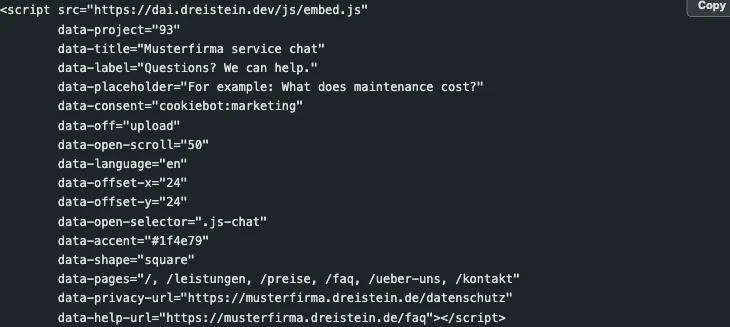
- Copy. At the end of the page is the finished embed code. The “Copy” button puts it on the clipboard.
- Paste. Insert the line once into your website, ideally directly before
</body>. It loads everything else itself: stylesheet, chat logic and, if needed, the voice feature. - Allow. Enter the website under Edit → Access and visitor features → Allowed websites. As long as the list is empty, any website may embed the chat. As soon as there is an entry, only those.
The sections in detail
Assistant & language

| Field | Meaning |
|---|---|
| Assistant | Which assistant answers. “Collection default” uses the collection without an assistant profile. An assistant brings its own greeting, starter questions, accent colour and a narrowed-down knowledge (Chapter 10). |
| Language | “automatic” adopts the language of the embedding page. A fixed language forces the interface and the answer language. |
| Language model | Which language model answers. The choices are the collection’s default model and the further configurations from Chapter 4. |
These three values apply only to this embed. A second embed of the same collection can use a different assistant or a different model.
Features in this embed
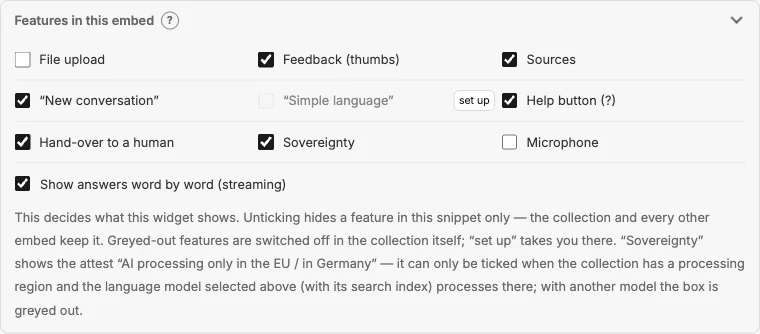
Here you define what this widget shows. A removed tick hides the feature only in this embed code. The collection and other embeds keep it.
- Greyed-out features are switched off in the collection itself. The link “set up” leads directly to the relevant setting.
- Sovereignty shows the attest “AI processing only in the EU” or “in Germany” in the chat. It can only be selected if the collection has a processing region and the language model chosen above, including the search index, processes there. With a different model the tick is greyed out.
- “Deep research” toggle shows a button in the chat footer that lets visitors switch the language model's second look at the search hits (chapter 7) on or off for their conversation. Default is on. The box can only be ticked when the collection has re-ranking switched on. Without the tick the button is missing and the collection always re-ranks.
- Streaming shows answers word by word instead of waiting for the finished answer.
Appearance
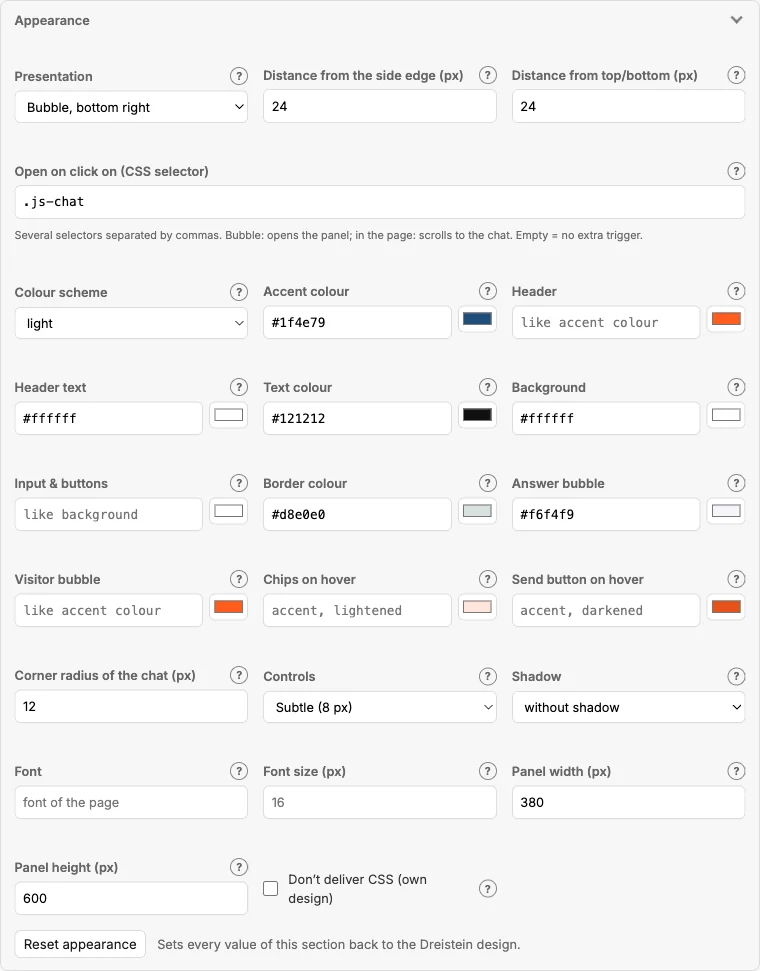
The section is enough for the vast majority of websites, without a single line of CSS.
| Field | Meaning |
|---|---|
| Presentation | Bubble in one of the four corners or fixed in the page. With “fixed”, the target element (CSS selector) determines where the chat appears. Empty means: directly after the script tag. |
| Spacing | Distance of the bubble from the page edge and from the top or bottom, in pixels. |
| Open on click on | CSS selectors of your own page elements, separated by commas, for example a button “Ask us”. With the bubble, the click opens the panel; with a fixed embed, the page jumps to the chat. |
| Colour scheme | light, dark or automatic according to the visitor’s system. |
| Colours | Accent colour, header and header text colour, text colour, background, input field and buttons, border, answer and visitor bubble, the colours of the chips on hover and of the send button on hover. Empty fields follow the accent colour. |
| Corner radius, controls, shadow | Rounding of the chat, shape of the buttons (round, slightly rounded, square) and whether the panel casts a shadow. |
| Font, font size | Empty adopts the font of the page. The size scales the entire chat. |
| Panel width, panel height | Dimensions of the panel in pixels. |
| Don’t deliver CSS | For your own design: the widget comes without a stylesheet. The buttons “CSS” and “SCSS” provide a template with all variables. |
Reset. “Reset appearance” resets all values of this section to the standard design, after a confirmation prompt.
What the test chat cannot show. Presentation, spacing, panel width and “Open on click” only take effect on the real page. If you change one of these fields, a note appears below the test chat for a few seconds.
Texts
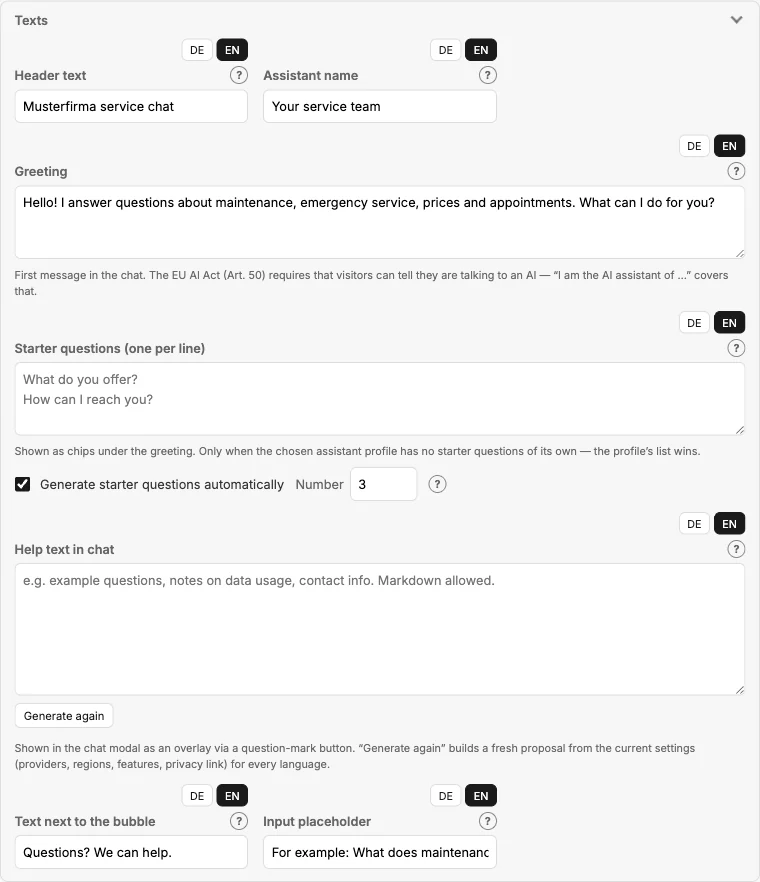
Every text field has tabs per language as soon as the collection has indexed content in several languages; until then there is only the main language. Empty fields are filled with a suggestion when first opened, which you can overwrite at any time. An empty language tab falls back to the main language in the chat.
| Field | Meaning |
|---|---|
| Header text | Text in the header of the chat. |
| Assistant name | Sender name above the answers. |
| Greeting | First message in the chat. {name} is replaced by the name of a signed-in visitor (Chapter 13). |
| Starter questions | One question per line, as clickable chips below the greeting. Alternatively generate automatically: then dAI Pro puts together fresh questions from the collection’s knowledge for every new conversation; you set the number. |
| Help text in the chat | Text behind the ?-button: what the chat is, where questions go, links to privacy policy, contact and imprint. “Regenerate” rewrites it from the collection’s details, taking the chosen language model into account. |
| Text next to the bubble | Short text that stands next to the closed bubble, such as “Questions? I can help.” Only with the bubble presentation. |
| Input placeholder | Grey hint text in the empty input field. |
Bubble behaviour
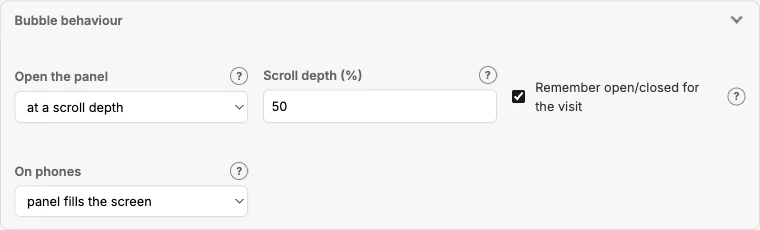
Applies only if the presentation is a bubble.
| Field | Meaning |
|---|---|
| Open panel | on click only, immediately, after a number of seconds or from a scroll depth in per cent. |
| Remember open/closed | The browser remembers for the visit whether the visitor has closed the panel. It then doesn’t open again by itself on the next page. |
| On smartphones | Panel full screen, bubble as on desktop or hide the widget entirely. |
Integration
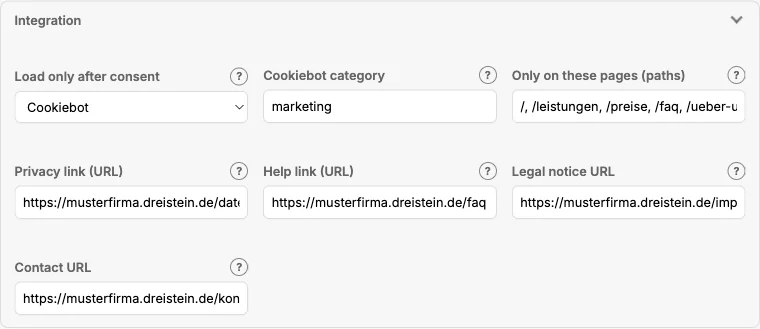
| Field | Meaning |
|---|---|
| Load only after consent | The chat only loads once the visitor has agreed in the cookie banner: Cookiebot (with category), Usercentrics, a custom event or a set cookie. Details in Chapter 21. |
| Text until consent | What stands in place of the chat as long as consent is missing. Only with a fixed embed. |
| Only on these pages | Paths on which the chat appears, for example /support/*. Empty means everywhere. |
| Privacy, help, imprint, contact URL | Links in the help text and in the attest. dAI Pro suggests them from the collection’s indexed pages. |
The embed code
The code is a single script tag. All settings are attached to it as data- attributes, but only those that deviate from the collection’s defaults. The complete list of attributes is below the code and in Chapter 28.
If your website uses a Content Security Policy, the address of your dAI Pro instance must be allowed in script-src, style-src, connect-src and img-src.
Frequently asked questions
I changed something, but I don’t see it on my website. Reload the page. The code stays the same; the chat fetches the settings when loading. If it stays at the old state, your browser or a cache of the website is holding on to the files.
The chat doesn’t appear on another website. Check the allowed websites in the collection’s settings. If the list is filled, only the entered addresses get through.
“Sovereignty” cannot be ticked. The chosen language model does not process in the promised region. Choose a suitable model above, or remove the processing region in the collection’s settings (Chapter 20).
Can I design the chat entirely myself? Yes. Tick “Don’t deliver CSS” and start with the CSS or SCSS template. All colours, radii and dimensions are prepared in it as variables.
Two chats on one website, one for customers, one internal? Create a separate code per embed, with a different assistant and page paths. Both point to the same collection.
See also
- Chapter 4 · Setting up collections (allowed websites, processing region)
- Chapter 9 · Embedding the search
- Chapter 10 · Assistants
- Chapter 12 · Human handover and actions
- Chapter 21 · Consent and cookie banners
- Chapter 28 · Embed reference