Manual · Chapter 3 · Part A Getting started
The interface
Purpose
All pages of dAI Pro follow the same patterns. Once you know them, you find your way around every area. This chapter shows the building blocks that are not explained again in the following chapters.
The top bar
The top bar applies to the whole instance, independent of the collection:
| Item | Content |
|---|---|
| Collections | The start page with all collections. |
| LLM configurations | Language models and their access credentials (Chapter 24). |
| Inbox | The support inbox across all collections (Chapter 17). |
| Function library | Tools the chat may call, such as availability or stock (Chapter 10). |
| Users, Groups | Accounts and permissions (Chapter 25). |
| Settings | Instance-wide settings such as the number of background workers (Chapter 26). |
The collection rail
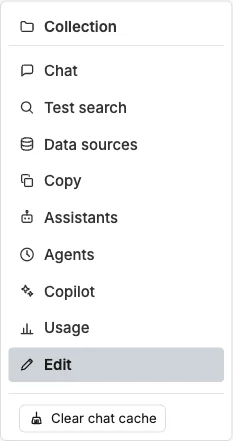
Within a collection, the rail with its areas sits on the left. It stays the same on every page; the active area is highlighted.
| Area | Chapter |
|---|---|
| Collection | Overview, indexing, documents · Chapter 6 |
| Chat | Test chat and embed configurator · Chapter 8 |
| Test search | Test search and search configurator · Chapter 9 |
| Data sources | Chapter 5 |
| Copy | Documents to other collections · Chapter 6 |
| Assistants | Chapter 10 |
| Agents | Chapter 15 |
| Copilot | Chapter 18 |
| Usage | Chapter 19 |
| Edit | Settings of the collection · Chapter 4 |
Below the rail sits Clear chat cache: dAI Pro remembers answers to identical questions. After a content change, this button empties the store so that the chat gives the new answer (Chapter 7).
The header

Every page of a collection begins with the same header: name of the collection, the current area, the schema and the language model that is currently answering. So it always stays visible what you are working in, even with several collections in several browser tabs.
Collapsible sections
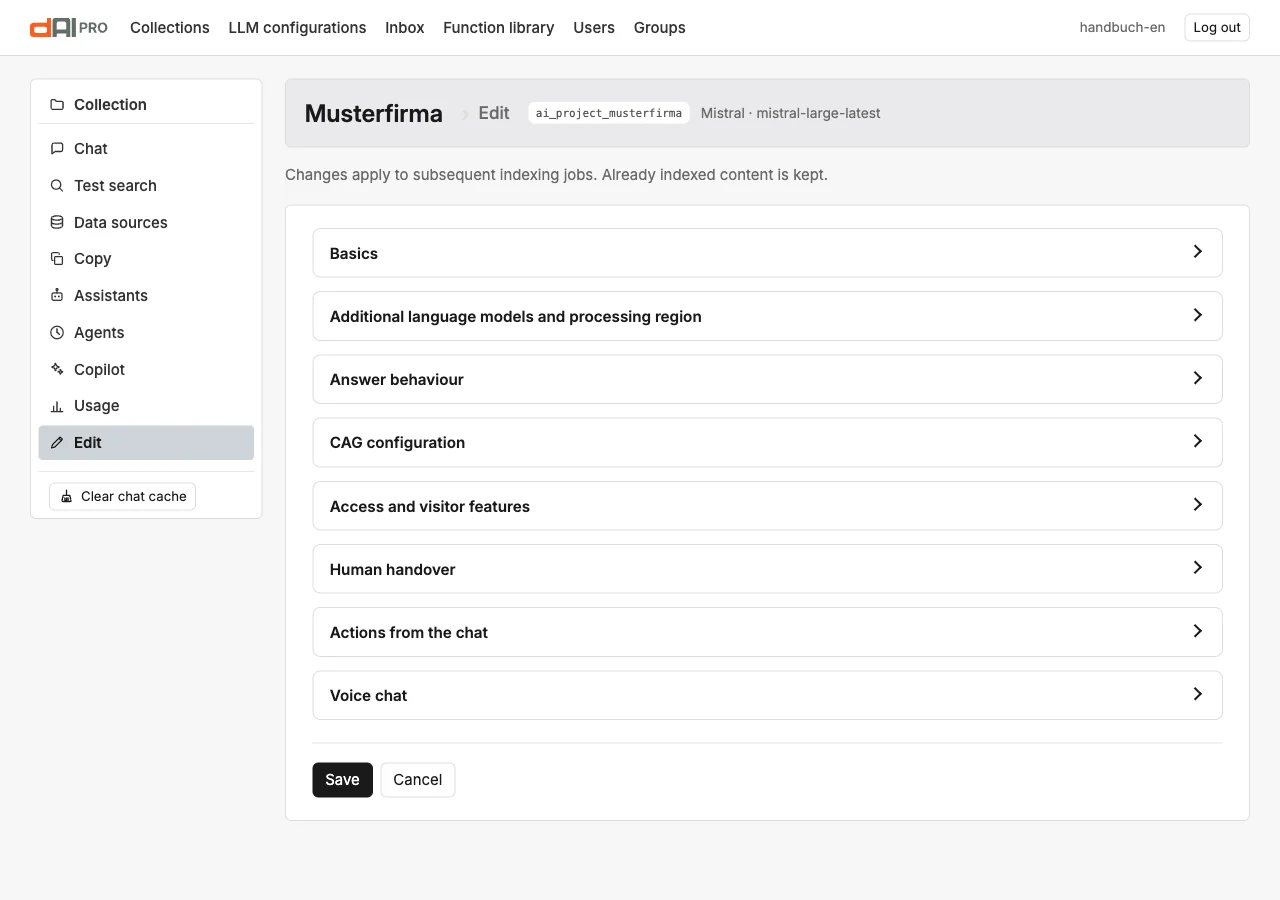
Long forms are divided into sections. The whole title line expands and collapses. Whether a section is open or closed is remembered by your browser per section; on the first visit only the first one is open. A link that points to a specific setting, such as “set up” from the chat configurator, opens the matching section by itself.
Language tabs
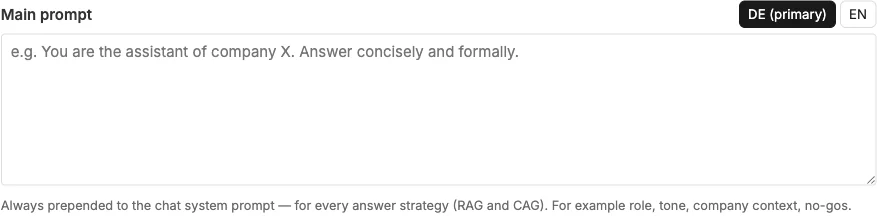
Texts that visitors see exist per language of the collection. The first tab is the primary language, the others the remaining languages. An empty tab means: in the chat, the primary language's version applies. In the settings forms, the button Translate from primary language helps; it lets the language model produce a first version that you check and adjust.
In the configurators for chat and search, the tabs only appear once the collection has indexed content in several languages.
Help on every field
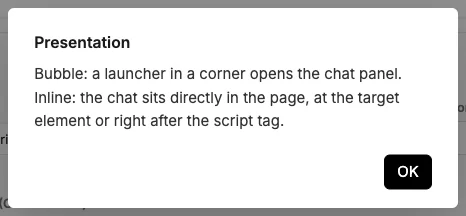
In the configurators, every field carries a ? button. It opens the explanation as a dialog without leaving the page. In the settings forms, the explanation appears as text below the field.
Saving
There are two kinds of pages:
- Forms with a “Save” button: settings of the collection, data sources, assistants, agents. Changes only take effect after the click. A required field that is left empty opens its section and shows the browser's message.
- Configurators without a button: chat and search save every change by themselves after a short pause. The preview next to them shows the current state.
Messages appear as a dialog in the middle of the page: confirmations before deleting, notices after saving, errors with the reason.
Live displays
Lists with progress, such as the jobs of the indexing or the documents during processing, refresh themselves every few seconds. Reloading the page is not necessary.